

SHA/SHIF Biometric Installation services
- Supply of Approved Scanners: We provide certified fingerprint scanners compliant with the Social Health Authority (SHA) requirements.
- System Integration: We offer Seamlessly integrate the biometric system with existing facility management systems.
- On-site Installation & Setup: Professional installation to ensure smooth operation from day one.
- Training & Support: Comprehensive training for staff on the new Biometric Health Identification (BHI) system.
- Compliance Assurance: Ensure your facility meets all the latest SHA guidelines for patient identification and verification

SHA/SHIF Appproved scanners
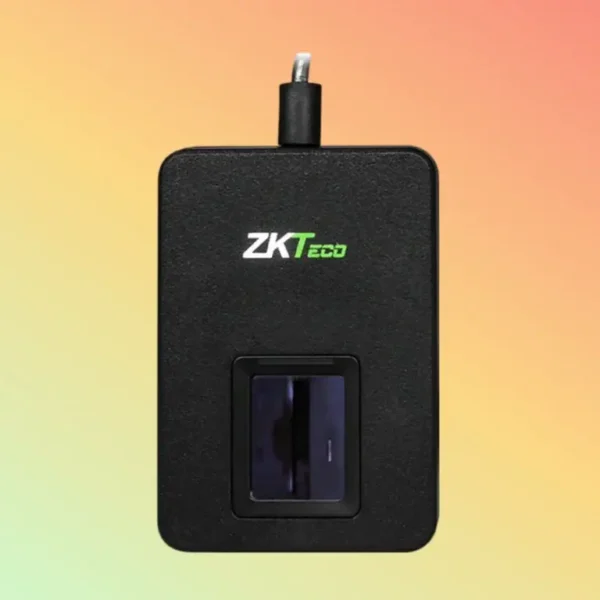
Secugen Fingerprint Scanners
ZK9500 – ZKTeco USB Fingerprint Scanner for SHA/SHIF installation
KSh12,000.00 Ex.VAT
-8%
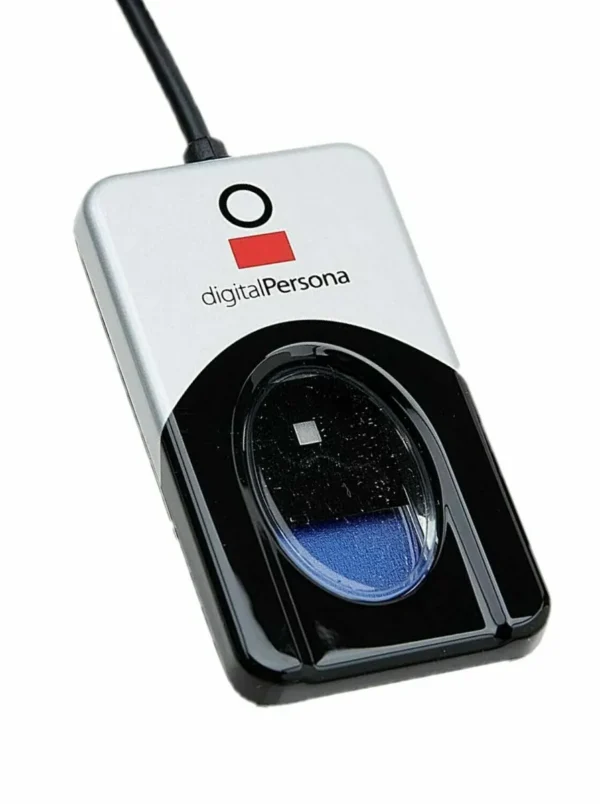
Secugen Fingerprint Scanners
Original price was: KSh18,500.00.KSh17,000.00Current price is: KSh17,000.00. Ex.VAT
-3%
Secugen Fingerprint Scanners
Original price was: KSh15,500.00.KSh15,000.00Current price is: KSh15,000.00. Ex.VAT
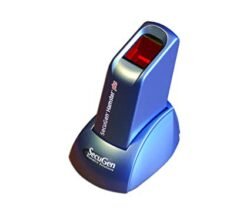
Secugen Fingerprint Scanners
SecuGen Hamster PLUS Fingerprint Reader-USB for SHA/SHIF Installation
KSh14,500.00 Ex.VAT
-3%
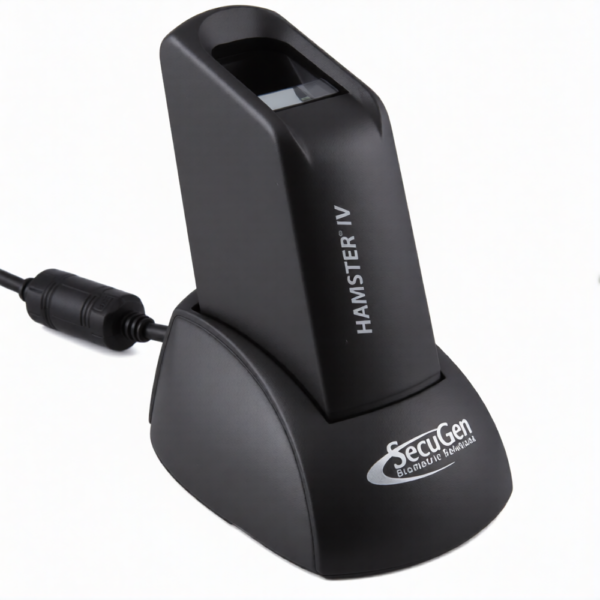
Secugen Fingerprint Scanners
Original price was: KSh16,000.00.KSh15,500.00Current price is: KSh15,500.00. Ex.VAT
-10%
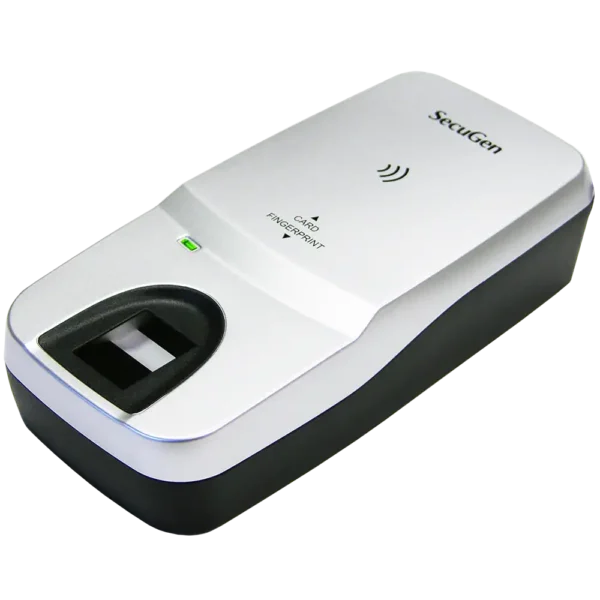
Secugen Fingerprint Scanners
Original price was: KSh34,000.00.KSh30,500.00Current price is: KSh30,500.00. Ex.VAT
-7%
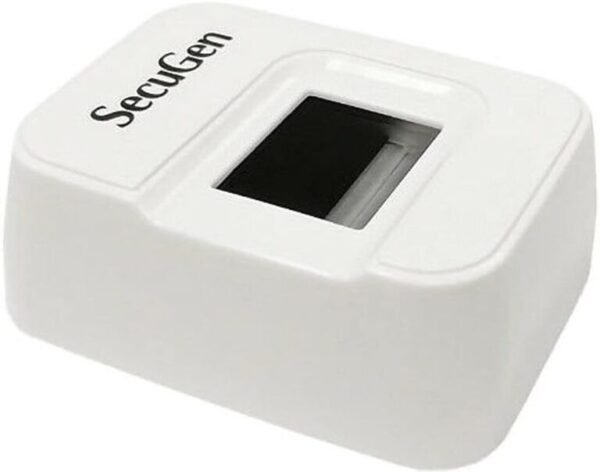
Secugen Fingerprint Scanners
Original price was: KSh10,500.00.KSh9,800.00Current price is: KSh9,800.00. Ex.VAT
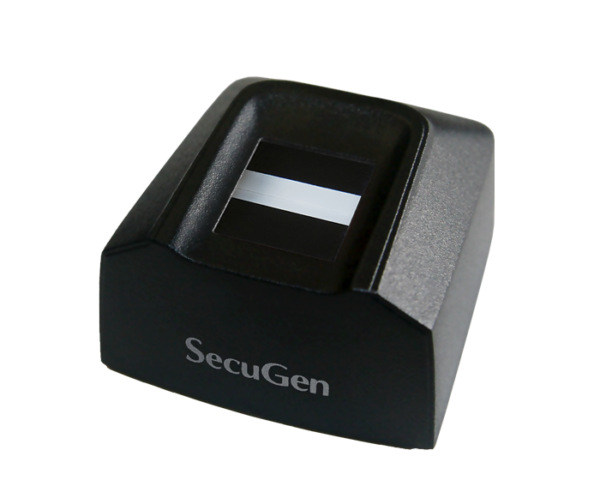
Secugen Fingerprint Scanners
KSh16,000.00 Ex.VAT
SHA/SHIF Biometric Enrollment: Full Installation Guide for SecuGen Hamster Plus & ZKTeco ZK9500
Step-by-Step Installation: SHA Health ID Application & Scanner Drivers
Setting up your biometric station (for both the Hamster Plus and ZK9500) requires minimal technical expertise and follows a clear process.
Phase 1: Downloading and Installing the Health ID App
This is the primary application that links your scanner to the national SHA backend.
- Download the Installer: Go to the official eCitizen installation page: ekyc.ecitizen.go.ke/installation and download the health ID installer.
- Prepare for Installation: Before running the file, close all other applications, especially any active antivirus software, to prevent conflicts.
- Run the Installer: Launch the downloaded file. Follow the on-screen prompts, choose a destination folder (if prompted), and ensure all setup tasks remain checked.
- Complete Installation: Click “Finish.” A new Health ID desktop icon will be created for easy access.
Phase 2: Connecting and Configuring the Biometric Scanner
The scanner requires its manufacturer-specific driver to communicate with your computer (Windows, Linux, or Android).
|
Step |
Action |
Critical Note |
|
1. Connect |
Plug the SecuGen Hamster Plus or ZKTeco ZK9500 into your computer using the included USB cable. |
The computer should recognize a new device but will not function yet. |
|
2. Install Drivers |
You MUST install the latest official drivers for your specific model (Hamster Plus or ZK9500). |
Get drivers from the manufacturer’s official website (SecuGen, ZKTeco) or your trusted local vendor. |
|
3. Configure |
The Health ID application, often working in conjunction with platforms like Practice 360 app, must be configured to use your installed SecuGen/ZKTeco device for all enrollment and verification functions. |
This step is often guided by the official installer in Phase 1. |
|
4. Test |
Launch the Health ID app and test the verification process to confirm seamless integration and fast, accurate reading. |
Confirm the device’s light activates when the app calls for a scan. |
Key Features of Approved Biometric Scanners
Both the SecuGen Hamster Plus and ZKTeco ZK9500 are preferred for the demanding Kenyan environment due to their robust features:
SecuGen Hamster Plus: The Proven Workhorse
|
Feature |
Benefit for SHA/SHIF Verification |
|
Auto-On™ Technology |
Automatically detects a finger when placed, significantly streamlining patient throughput. |
|
Smart Capture™ |
Self-adjusts scanning brightness to capture high-quality images from difficult prints (dry, wet, or scarred fingers), crucial for manual laborers. |
|
Rugged and Durable |
Built to withstand frequent, high-volume use in demanding environments like busy clinics. |
|
Security |
Features like latent print rejection prevent the fraudulent use of residual fingerprints. |
ZKTeco ZK9500: Power and Portability
The ZK9500 is recognized for its low power consumption and excellent performance in challenging light conditions, making it highly suitable for mobile registration and facilities with less stable power. It provides reliable 500 DPI imaging and cross-platform compatibility.
Verification Process for Facilities and Agents
Once the installation is complete, follow these steps to use the system:
- Launch the Application: Double-click the Health ID desktop icon.
- Agent Login & Verification:
- Enter the agent’s National ID Number.
- Click ‘Next’ to receive a One-Time Password (OTP) for agent identity verification.
- Follow the prompts to trust the Health ID application if a security notification appears.
- Start Verification:
- The agent views pending verification requests on the activity page.
- Select a request and choose ‘fingerprint’ for verification.
- Select the specific finger on the on-screen hand.
- Instruct the patient to place the selected finger on the scanner.
- Once the fingerprint registers, click ‘Verify’ to complete the process.
The Essential Biometric Scanners for Kenya’s Health ID System (SHA/SHIF)
The introduction of the Social Health Authority (SHA) and the new Social Health Insurance Fund (SHIF) has mandated secure, biometric verification for all healthcare services. The SecuGen Hamster Plus and ZKTeco ZK9500 are the two widely approved and most reliable fingerprint scanners for this critical system in Kenya.
This comprehensive guide covers why these devices are essential and provides a step-by-step installation process for your facility.
Why Biometric Scanners are Crucial for SHA/SHIF
The move to biometric Health ID verification is a cornerstone of the new system, replacing outdated, fraud-prone methods like one-time passwords (OTPs). The approved scanners guarantee:
- Security: Eliminates identity fraud, ghost claims, and misuse of health benefits.
- Reliability: Guarantees a non-repudiable method of verifying identity at the point of care.
- Efficiency: Streamlines patient processing and reduces wait times in health facilities.
- Compliance: Ensures your facility meets the mandatory requirements for the SHA/SHIF backend platform.